
Google Business Profile logo: size, upload and troubleshooting
For a Google Business Profile, prepare a clear PNG or JPG on a square canvas. Google’s general photo guidance recommends 720×720 pixels, with a 250×250 minimum and a file size of 10 KB–5 MB. Choose a compact logo that survives a small preview, then check profile verification and publication status if it does not appear.
On this page
- What are Google’s actual image requirements?
- Which version of your logo belongs in a square?
- Should the tile be transparent or have a background?
- How do you prepare the file from LogoSaga?
- How do you upload it without guessing the interface?
- What do pending, rejected and live mean?
- What if the logo is still missing or blurry?
- Is this the same logo as a website favicon or ad asset?
What are Google’s actual image requirements?
Google lists JPG or PNG, a file size between 10 KB and 5 MB, a recommended resolution of 720×720 pixels, and a minimum of 250×250 pixels in its general Business Profile photo guidance. These specifications cover photos broadly. The same page separately describes a logo as an image that helps customers recognize your business; it does not give a different logo-only size table.
For the practical logo workflow here, use a square 720×720 canvas. That is a sensible working target, not a claim that every image must have precisely those dimensions. Preserve a larger original so future exports do not depend on enlarging this profile file. The pixel dimensions of the canvas and the visible size of the symbol are different: a large image with huge margins can still produce a tiny logo.
| Check | Published Google guidance | Practical preparation |
|---|---|---|
| Format | JPG or PNG | PNG for crisp artwork; retain the SVG master |
| Resolution | Recommended 720×720; minimum 250×250 | Start with a square canvas at the recommendation |
| File size | 10 KB–5 MB | Check the finished file, not just its extension |
| Logo role | Business recognition | Show a recognizable symbol or short name |
Which version of your logo belongs in a square?
A long horizontal logo works on a website header but often becomes too small in a profile tile. Try the symbol alone, a monogram, or a stacked version. A café called “North River Coffee” might use its compact cup symbol rather than force three words into one thin line. If the symbol is unfamiliar, a short, readable name can be a better choice than an attractive but anonymous icon.
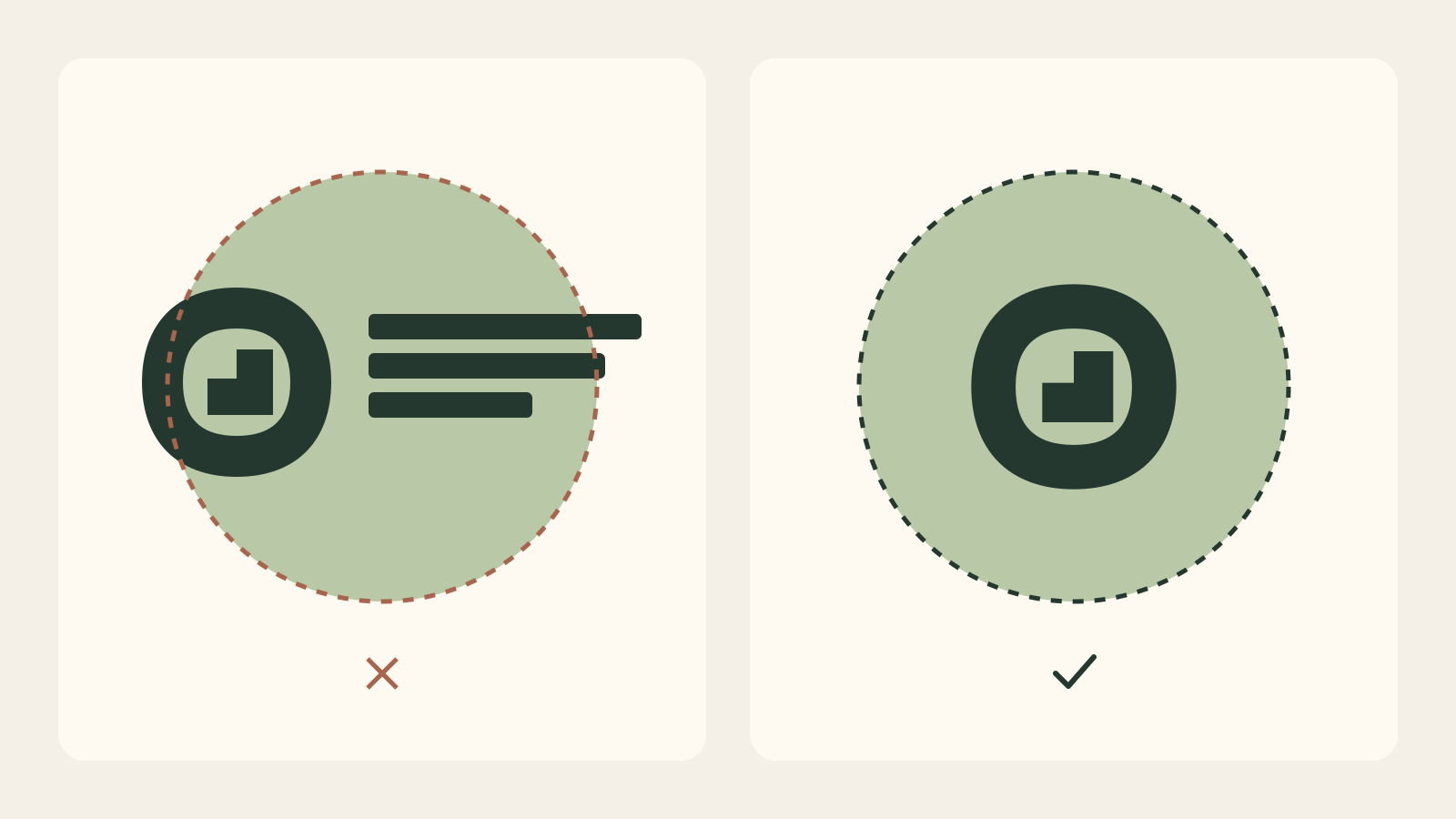
Leave a visible margin around the artwork and preview a circular crop as well as the full square. This is a design safety check, not an exact Google safe-area specification. Keep important details away from the corners. Do not distort the mark to fill the canvas: scale it proportionally, and choose a different arrangement when it does not fit. Logo anatomy explains the difference between a symbol, a wordmark and their combined layouts.
Should the tile be transparent or have a background?
Transparency is optional. It lets surrounding colours show through, but it does not make a logo automatically legible. A pale mark can disappear on a light surface, and a thin dark mark may lose definition against another dark surface. Compare a transparent version with a deliberate solid tile before choosing.
Use a background that belongs to the identity and keep the logo distinct from it. A white rectangle is not inherently a mistake if you deliberately want a white tile; it becomes a problem when you expect transparency. Our transparent logo guide helps distinguish a real transparent export from white artwork and a flattened white background. Do not erase intentional white parts of a logo merely to remove the surrounding canvas.
How do you prepare the file from LogoSaga?
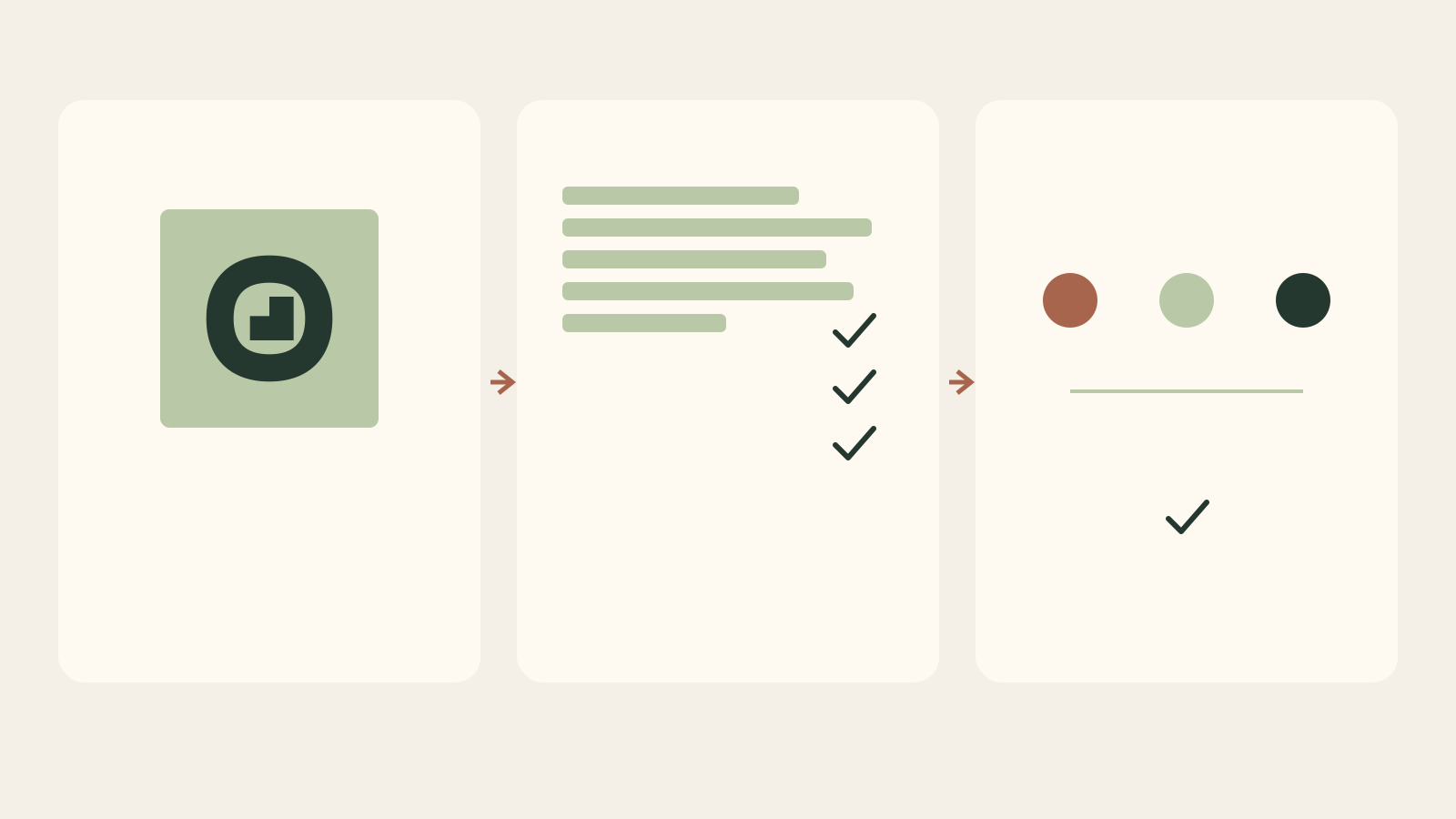
First refine the logo in LogoSaga and choose a compact arrangement. In the export controls, select the light or dark variant according to the intended destination, choose PNG, and select a transparent or solid background. The available PNG widths are 512, 1024 and 2048 pixels. A 1024-pixel export is a useful starting point for preparing a 720-pixel tile; its width alone does not imply a square result.
If the exported logo has a rectangular canvas, place it in an image editor on a new 720×720 canvas, scale proportionally and centre it with breathing room. Export the resulting tile as PNG and inspect its file size. LogoSaga does not upload to your Google profile or provide a dedicated Google tile integration. Keep the SVG separately so later changes can be rendered from vectors, instead of enlarging this raster file.
Open the final PNG itself, not only the editor preview. Check that no old tagline, accidental border, checkerboard pattern or excessive margin came along. Preview it at a small size and ask someone unfamiliar with the design whether they can recognize the mark. A successful export is a starting point; the destination preview is the real test.
How do you upload it without guessing the interface?
Use the current Google instructions for adding or changing a logo. They describe managing a business through Google Search or Maps, opening its photos and choosing the logo action. Wording and available controls can vary by device, account and interface version, so follow the actions actually shown for the profile you manage.
-
On a computer, sign in to the Google account that manages this business. Open Google Search or Maps and find the business by name and city.
-
Open the profile photos, then choose the action to add a logo. To replace an existing logo, use the action to change the logo.
-
Select the prepared PNG or JPG from your computer. Check that you selected the logo action rather than a cover photo.
-
After uploading, check the media status and then the public profile. Confirm the crop and small-size readability; an uploaded file and a publicly displayed logo are separate checks.
Confirm that you selected the correct business and have access to manage it. Google states that photos and videos appear only after the profile is verified. If verification is incomplete, follow Google’s verification guidance before repeatedly replacing a perfectly valid image. Upload the prepared PNG to the logo location rather than confusing it with a cover photo, a product image or an ordinary business photograph.
What do pending, rejected and live mean?
Google’s upload-status explanation distinguishes three states. Pending means the image is being uploaded, processed, or the profile is not verified. Not approved means the image was flagged for violating photo or video policies. Live means it appears on Search and Maps. The help page notes that photos and videos can take 24–48 hours to show; this is not a guaranteed deadline for every case.
| What you observe | Check first | Useful next action |
|---|---|---|
| Upload fails | Format, dimensions and file size | Re-export the correct PNG or JPG |
| Pending | Verification and processing | Finish verification; allow review time |
| Not approved | Policy reason shown | Correct the specific issue before retrying |
| Live, but cropped badly | Artwork size and margins | Replace it with a better square composition |
| Logo missing | Business information and status | Check the profile details and Google guidance |
What if the logo is still missing or blurry?
For a missing logo, Google specifically recommends checking the business name, valid location with a street address, categories, phone number and opening hours in its missing-logo section. Supply accurate information relevant to your legitimate business; do not invent an address just to make an image display. Distinguish these account and profile checks from file-format diagnosis.
For a blurry logo, return to the original vector and export again. Resizing a tiny screenshot to 720×720 adds pixels, not the missing shape detail. For an unreadable logo, reducing the number of words or choosing a symbol is more useful than increasing the file size. For a wrong crop, adjust the canvas and margin rather than stretching the lettering. Change one cause at a time so you can see what actually helped.
Is this the same logo as a website favicon or ad asset?
No. A Business Profile logo is an uploaded profile image. A website favicon is a site icon configured on the website. Advertising assets have their own specifications and review process. Correcting one does not automatically update the others, even when they share the same underlying symbol.
Keep a clearly named profile file beside the original SVG and other exports. The logo formats and sizes checklist maps those different destinations. A well-prepared logo supports consistent recognition; it is not a shortcut to a higher local ranking or a substitute for accurate business information.
Related practical guides: Logo testing checklist: 10 checks before you launch · Favicon from your logo: browser sizes and Google Search
Create a logo and download an SVG or PNG in LogoSagaFrequently asked questions
What size should my Google Business Profile logo be?
Google’s general photo guidance recommends 720×720 pixels, with a minimum of 250×250. Use a square canvas for your logo; those numbers are not a distinct logo-only specification.
Can I upload an SVG logo to my Business Profile?
Google’s published photo requirements name JPG and PNG. Keep your SVG as the master and export a PNG for this upload.
Why does my business logo not appear on Google?
Check profile verification, the image status and required business information. Pending means the image is being processed or reviewed; a rejected image needs the stated issue fixed.
Should my profile logo have a transparent background?
Only if it remains readable where Google displays it. Transparency is not a requirement. A deliberate solid tile may be safer for a light-coloured or very detailed mark.
Will adding a logo improve my local search ranking?
A logo helps customers recognize the business. Uploading one is not a promise of a higher position in Search or Maps, and this guide makes no ranking guarantee.
Sources
- Manage your Business Profile photos & videos — Google Business Profile Help
- Verify your business on Google — Google Business Profile Help